> For the complete documentation index, see [llms.txt](https://docs.viesus.com/llms.txt). Markdown versions of documentation pages are available by appending `.md` to page URLs; this page is available as [Markdown](https://docs.viesus.com/installation/cli.md).

# CLI & Viewer

This guide installs the **VIESUS Viewer and CLI** base package — the foundation every Windows interface builds on. AI features (AI upscaling, Artifact Removal, Background) ship as separate add-on installers; see [AI Add-ons](/installation/add-ons.md) after completing this guide. License activation is covered under [Licensing → Activation Key](/licensing/activation-key.md).

***

## Choose your installer: CPU or GPU

The base package comes in two variants — pick the one that matches your hardware:

<table><thead><tr><th width="158.5999755859375">Installer</th><th width="237.199951171875">Use when</th><th>Notes</th></tr></thead><tbody><tr><td><code>...GPU_x64.exe</code></td><td>The machine has a compatible NVIDIA GPU</td><td>Full hardware-accelerated AI processing. Requires NVIDIA Ampere or newer with ≥ 8 GB GPU RAM.</td></tr><tr><td><code>...CPU_x64.exe</code></td><td>No compatible NVIDIA GPU</td><td>All standard enhancement works; AI features (AI upscaling, Artifact Removal) run far slower and aren't recommended for production batches.</td></tr></tbody></table>

{% hint style="info" %}
Replace `<VERSION>` in all filenames below with the version number shown on the Transfer Portal download page (for example, `13.00.00`).
{% endhint %}

{% hint style="info" %}
A **CLI-only** variant (`VIESUS_CLI_Setup_VIESUS_<VERSION>_GPU_x64.exe`) installs the command-line tool without the Viewer, for headless servers. The steps below apply to either; only the Viewer component differs.
{% endhint %}

***

{% stepper %}
{% step %}

## Install VIESUS

{% tabs %}
{% tab title="Windows" %}
Download the installer that matches your hardware from the [VIESUS Transfer Portal](https://transfer.viesus.com), then right-click it and choose **Run as administrator**.

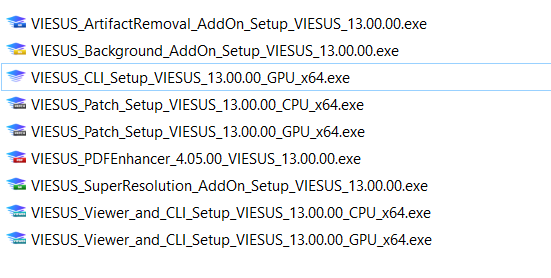
<figure><img src="/files/rGTl0Co99XwdlVU9yHw6" alt="Available VIESUS installers in the Transfer Portal"><figcaption><p>The Transfer Portal lists the base Viewer + CLI installers, add-ons, the PDF Enhancer, and patches.</p></figcaption></figure>

{% stepper %}
{% step %}

#### Accept the license agreement

Read and accept the End-User License Agreement, then click **Next**.
{% endstep %}

{% step %}

#### Select components

The default **Full installation** includes the VIESUS License Tool, Commandline, FolderEnhancer, License Service, and Viewer. Leave all components checked unless you have a specific reason to exclude one, then click **Next**.
{% endstep %}

{% step %}

#### Additional tasks

Optionally check **Create desktop icons**, then click **Next**.
{% endstep %}

{% step %}

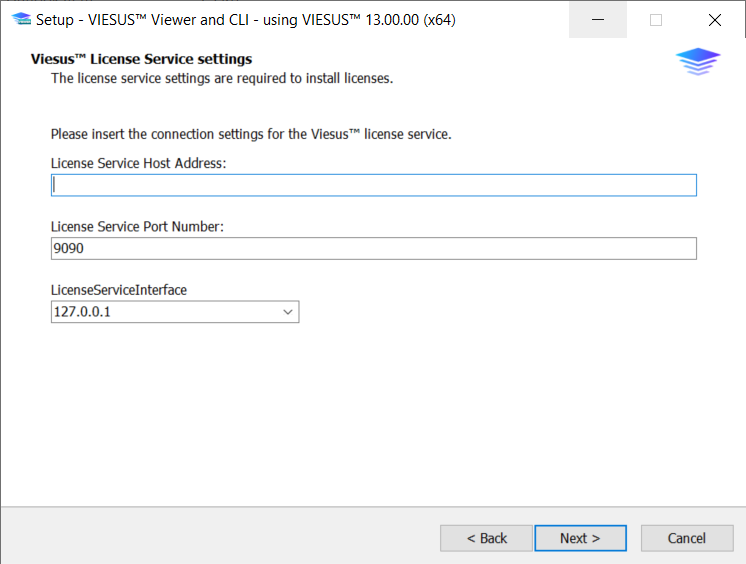
#### License Service settings (conditional)

This dialog appears **only** when the installer is launched from the command line with the `/NET` argument, for special network licensing setups:

```powershell
VIESUS_Viewer_and_CLI_Setup_VIESUS_<VERSION>_GPU_x64.exe /NET
```

In a standard installation this step is skipped. When it appears, leave **License Service Host Address** blank and keep the defaults (port `9090`, interface `127.0.0.1`), then click **Next**.

<details>

<summary>Show Screenshot</summary>

<figure><img src="/files/DRwdHMDQtXBf2qaL8MEb" alt="License Service settings screen"><figcaption></figcaption></figure>

</details>
{% endstep %}

{% step %}

#### Ready to install

Review the summary of selected components and tasks, then click **Install**.

Wait while the installer extracts and installs all files.
{% endstep %}

{% step %}

#### Finish and restart

Click **Finish** to exit the Setup Wizard, then **restart Windows** before continuing to license activation.

{% hint style="warning" %}
A restart is required before license activation. Skipping it can cause activation failures.
{% endhint %}
{% endstep %}
{% endstepper %}
{% endtab %}

{% tab title="Linux" %}
VIESUS ships for Linux as `.deb` (Debian/Ubuntu) and `.rpm` (Red Hat/CentOS/Fedora) packages, for both x64 and arm64. The distribution is split into three packages — **all three must be installed**:

| Package          | Contents                                                        |
| ---------------- | --------------------------------------------------------------- |
| `viesus-redist`  | Redistributable runtime libraries (OpenCV, shared dependencies) |
| `viesus`         | VIESUS CLI, enhancement library, and AI models                  |
| `viesus-license` | License management tool (`DongleStatus_64_RS`)                  |

{% hint style="info" %}
On Linux the AI models are **bundled in the `viesus` package** — there are no separate add-on installers. The Windows add-ons described in [AI Add-ons](/installation/add-ons.md) do not apply.
{% endhint %}

Download all three packages from the [VIESUS Transfer Portal](https://transfer.viesus.com), then install:

```bash
# Debian / Ubuntu — remove previous versions if present
sudo dpkg -r viesus-license viesus viesus-redist

sudo dpkg -i viesus-redist_<VERSION>_amd64.deb \
             viesus_<VERSION>_amd64.deb \
             viesus-license_<VERSION>_amd64.deb
```

```bash
# Red Hat / CentOS / Fedora
sudo rpm -e viesus-license viesus viesus-redist   # remove old versions if present

sudo rpm -ivh viesus-redist_<VERSION>_x86_64.rpm \
              viesus_<VERSION>_x86_64.rpm \
              viesus-license_<VERSION>_x86_64.rpm
```

For arm64, use the `_arm64.deb` / `aarch64.rpm` package names. Full feature support requires an NVIDIA GPU; edge devices without a GPU run standard enhancement only.
{% endtab %}
{% endtabs %}
{% endstep %}

{% step %}

## Activate your license

Once VIESUS is installed and the machine has been restarted, activate your license on the target machine.

If you received a **GUID** (for deployments across multiple machines), no activation step on the install machine is required — the GUID is passed at runtime by each VIESUS interface. See [Licensing → GUID](/licensing/guid.md).

With an **Activation Key**, generate a request file with the VIESUS License Tool, send it to Viesus AG, and apply the activation file you receive back. Step-by-step with screenshots: [Licensing → Activation Key](/licensing/activation-key.md).
{% endstep %}

{% step %}

## Verify the installation

Open a command prompt and run:

```bash
viesus --version
```

You should see something like `VIESUS X.XX.XX IF win 64 bit – Build …` (version matches the package you installed). If the command isn't found, check that the VIESUS install directory is on your `PATH`.

For a complete first-run walkthrough including enhancing your first image, see [Quickstart: Image Enhancement](/get-started/quickstart-image-enhancement.md).
{% endstep %}
{% endstepper %}

***

## Troubleshooting

If activation fails, the license isn't recognised, or the CLI can't find the library:

* Confirm you **restarted** after install
* Verify the activation file matches the request file you generated
* Check that the `viesus_64.dll` you're calling matches the installed version (see [FAQ → GUID doesn't work](/support/faq.md#my-guid-doesnt-work-what-should-i-check))
* For more, see [Troubleshooting → First run](/support/troubleshooting.md#first-run) and [Troubleshooting → CLI](/support/troubleshooting.md#cli-and-image-enhancement)


---

# Agent Instructions
This documentation is published with GitBook. GitBook is the documentation platform designed so that both humans and AI agents can read, navigate, and reason over technical content effectively. Learn more at gitbook.com.

## Querying This Documentation
If you need additional information that is not directly available in this page, you can query the documentation dynamically by asking a question.

Perform an HTTP GET request on the current page URL with the `ask` query parameter, and the optional `goal` query parameter:

```
GET https://docs.viesus.com/installation/cli.md?ask=<question>&goal=<endgoal>
```

`ask` is the immediate question: it should be specific, self-contained, and written in natural language.
`goal` is optional and describes the broader end goal you are ultimately trying to accomplish on behalf of the user. GitBook uses it to tailor the answer towards what is most useful for that goal.

The response will contain a direct answer to the question and relevant excerpts and sources from the documentation.

Use this mechanism when the answer is not explicitly present in the current page, you need clarification or additional context, or you want to retrieve related documentation sections.