> For the complete documentation index, see [llms.txt](https://docs.viesus.com/llms.txt). Markdown versions of documentation pages are available by appending `.md` to page URLs; this page is available as [Markdown](https://docs.viesus.com/tools/folder-enhancer.md).

# Folder Enhancer

The VIESUS Folder Enhancer is a Windows GUI application built on top of the Image Enhancement CLI and the PDF Enhancer CLI. It watches one or more **hotfolders** — when a file lands in a watched folder, the Folder Enhancer automatically enhances it and writes the result to a configured destination folder.

Because it drives both underlying CLIs, the Folder Enhancer handles both **images** (JPEG, TIFF, PNG, …) and **PDF documents** with embedded images.

<figure><img src="/files/Nls2jMZ0Jrdmbj0vUNVx" alt="VIESUS Folder Enhancer main window showing configured hotfolders and the operation log"><figcaption><p>The main window lists each configured hotfolder and shows live processing status in the operation log.</p></figcaption></figure>

***

## How hotfolders work

Each hotfolder is an independent processing channel with its own configuration:

| Setting                    | Description                                                              |
| -------------------------- | ------------------------------------------------------------------------ |
| **Source folder**          | The folder to watch for incoming files                                   |
| **Destination folder**     | Where enhanced output files are written                                  |
| **Enhancement parameters** | A `viesusini.json` configuration applied to every file in this hotfolder |
| **File type**              | Images, PDFs, or both                                                    |

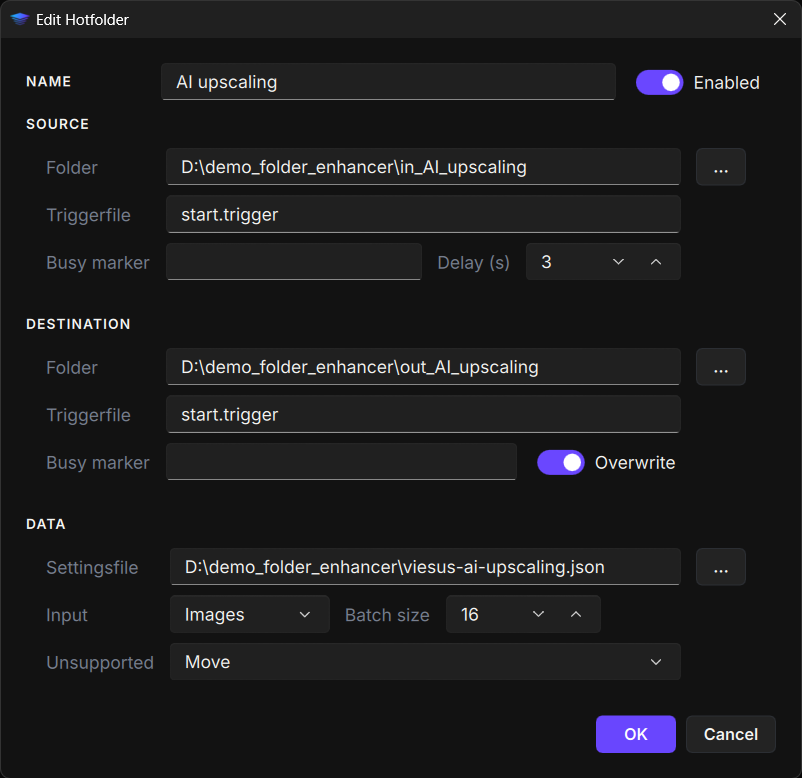
Each hotfolder is created and edited from the **Define Hotfolder** dialog, where you set the source and destination folders, the `viesusini.json` settings file, the input type (images or PDF), and options such as trigger files, batch size, and how to handle unsupported files.

<figure><img src="/files/mu2sAtUP9feIVKcgvYpb" alt="Define Hotfolder dialog showing source, destination, and data settings"><figcaption><p>The Define Hotfolder dialog — source, destination, and the per-hotfolder settings file and input type.</p></figcaption></figure>

You can define as many hotfolders as needed — for example one tuned for portrait photos, another for product images, and a third for PDF documents, all running simultaneously with different parameters.

When a file appears in a source folder, the Folder Enhancer:

1. Detects the new file
2. Applies the enhancement settings configured for that hotfolder
3. Writes the enhanced file to the destination folder
4. Optionally archives or deletes the source file

***

## When to use the Folder Enhancer

| Scenario                                                    | Use                                                                                                                   |
| ----------------------------------------------------------- | --------------------------------------------------------------------------------------------------------------------- |
| Automated enhancement without scripting or code             | ✓                                                                                                                     |
| Different enhancement settings per file type or source      | ✓                                                                                                                     |
| Integrating VIESUS into a Windows-based production workflow | ✓                                                                                                                     |
| Processing both images and PDFs from the same tool          | ✓                                                                                                                     |
| Linux deployments or scripted pipelines                     | No — use the [CLI](/reference/cli-reference.md) directly                                                              |
| Request-response or API-driven workflows                    | No — use the [Node.js module](/reference/node.js-module/overview.md) or [Cloud API](/reference/cloud-api/overview.md) |


---

# Agent Instructions
This documentation is published with GitBook. GitBook is the documentation platform designed so that both humans and AI agents can read, navigate, and reason over technical content effectively. Learn more at gitbook.com.

## Querying This Documentation
If you need additional information that is not directly available in this page, you can query the documentation dynamically by asking a question.

Perform an HTTP GET request on the current page URL with the `ask` query parameter, and the optional `goal` query parameter:

```
GET https://docs.viesus.com/tools/folder-enhancer.md?ask=<question>&goal=<endgoal>
```

`ask` is the immediate question: it should be specific, self-contained, and written in natural language.
`goal` is optional and describes the broader end goal you are ultimately trying to accomplish on behalf of the user. GitBook uses it to tailor the answer towards what is most useful for that goal.

The response will contain a direct answer to the question and relevant excerpts and sources from the documentation.

Use this mechanism when the answer is not explicitly present in the current page, you need clarification or additional context, or you want to retrieve related documentation sections.